Caught up, in the gap
between two calls.
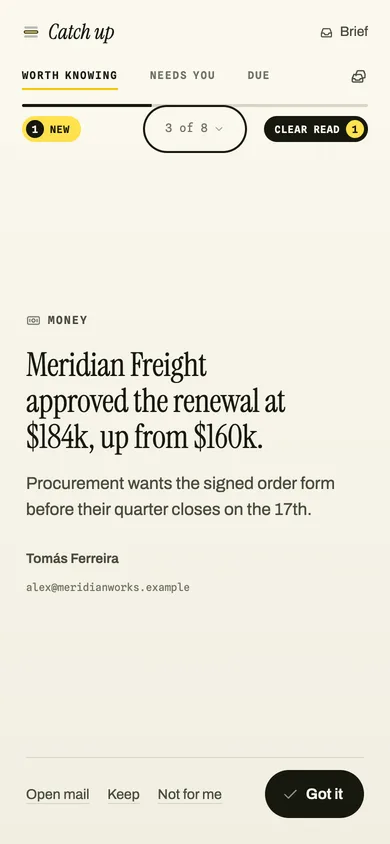
Add Unfold Work to your home screen and it opens on Catch up: what is worth knowing, what needs you and what is due across your mailboxes, one card per screen. Swipe to move, tap Got it or Done to mark, and every deck ends in a sentence. The same web app you use at a desk, nothing from a store, nothing new you have to check. It is running below, over made-up mail. Take it over and try it.
Last updated: October 7, 2026
One card per screen.
A working copy of Catch up, over made-up mail. Nothing here reads or sends anything.
A finite deck.
Never a feed.
Swiping moves. Got it and Done mark.
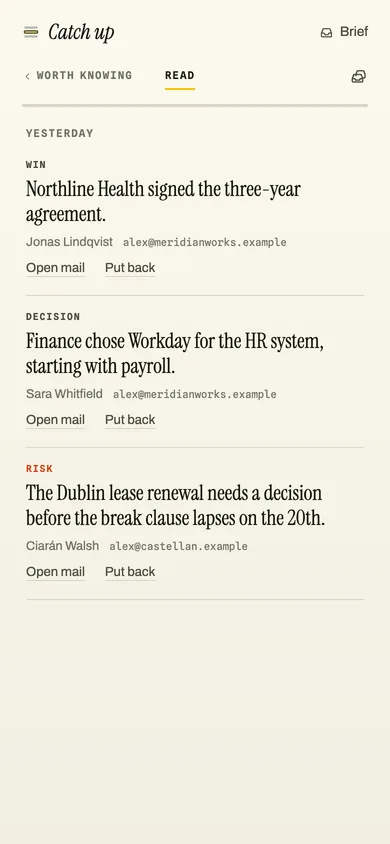
Skim forty cards and not one of them is marked by passing. Got it is the receipt on a Worth knowing card; Done is the receipt on what needed you or was due. The card stays where it is, reads as marked, and the deck moves on. Press it again to take the receipt back. Keep holds a card in front of you; Not for me files it.
Nothing moves under you.
The deck is fixed the moment it opens. Cards that arrive while you read wait behind a small pill until you press it. Cards you marked leave the next time you open Catch up, or when you press Clear read or Clear done.
It ends.
The last card of each deck is a sentence: “You are caught up on what is worth knowing.” What is still open in the other decks is named underneath in plain text, never as a badge, with one button to the next deck that has cards.
Find a card by what it said.
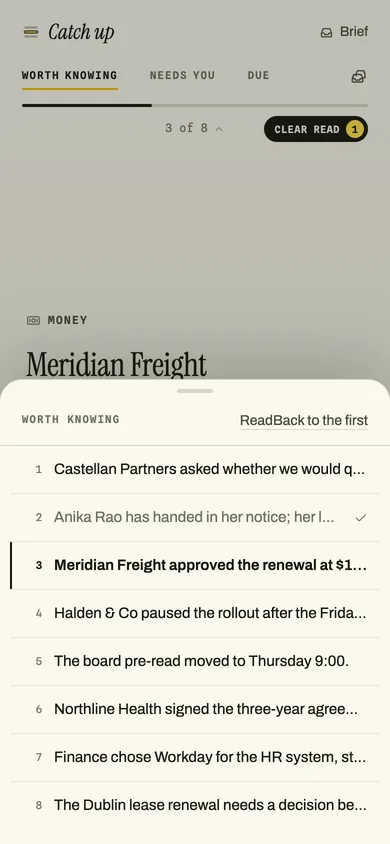
Tap the counter and every headline opens as a list, read ones ticked, the current one marked. Tap one to go there. Nobody remembers it was card four; everybody remembers it was the one about the renewal.
Three things it will
tap you about. Nothing else.
Only on a phone where you turned them on, and never during your quiet hours. Each one shows who it is from and the email's own subject, never an AI summary on your lock screen unless you turn that on. One notification at a time per kind: a burst counts up on the one already there instead of buzzing three times.
- Unfold WorkNeeds youFrom Tomás Ferreira
“Re: Renewal order form”Mail that asks something of you: an ask, a decision, a meeting request. A tap opens that card in the Needs you deck. - Unfold WorkWorth knowing: PeopleFrom Marcus Oyelaran
“Anika's resignation” Mail that asks nothing but earns a card: a decision made, a resignation, a customer escalating. A tap opens that card in Catch up, the rest of the deck behind it. - Unfold WorkYour morning brief is ready.4 need you | 2 may have slipped | 8 worth knowingCounts only, when a brief is delivered. On a phone the tap opens Catch up; on a computer, the brief.
Urgent interrupts are a separate, rarer thing with their own daily cap; they reach your phone too, and the cap is per person, not per mailbox. The three above are never counted against it. Every one of these is a switch in Settings, and the first switch is the only one you need: turning notifications on for a phone turns all three on.
Names and subjects on this page are made up. Your lock screen shows your own mail, and you can hide subjects from it with one setting.
The same app.
An icon of its own.
Unfold Work is a web app, and that does not change on a phone. Adding it to your home screen gives it an icon, a full screen, and the ability to notify you with nothing open. Nothing comes from a store, and there is nothing to keep up to date.
- 1
Open the app in Chrome on your Android phone.
app.unfoldwork.ai, signed in as usual. You can sign up and connect a mailbox from the phone too.
- 2
Choose “Add to Home screen” from Chrome's menu.
Some phones say “Install app”. Either way the icon appears beside your other apps and opens straight onto Catch up.
- 3
Turn notifications on for this phone: Settings, Notifications, Turn on.
A short card walks the three steps and then goes away: home screen, Turn on, see one. Each phone or computer gets its own switch, and every one you add is listed there so you can remove it later. Logging out on a phone stops its notifications.
On an iPhone, Unfold Work works in Safari like any site, including Catch up. The home-screen app and its notifications there are not something we promise yet; when we do, it will be because we have watched them work.
And at a desk: in Chrome or Edge on Windows or a Mac, the install icon at the right of the address bar opens the same web app in a window of its own, with its own icon in your dock or taskbar. In Safari or Firefox it works in a tab. Nothing you need: the brief is still the first email in your inbox.
- Not another inbox. Catch up shows only what Unfold Work already sorted: what needs you, what is due, what is worth knowing. It never shows your inbox.
- Not a feed. The deck is finite and frozen when it opens. It is never lengthened to keep you scrolling.
- No badge on the icon. No unread count anywhere on the surface that you cannot bring to zero in the same sitting.
- Not required. Everything on this page is optional. The brief still arrives as the first email in your inbox, and the interrupts still reach Slack or Teams, whether or not you ever touch a phone.
Why a tap on a Gmail item opens the inbox on a phone, and what we do about it: opening your mail. How the rest of a day works: the home page.